Kitchen operations

Meal Prep Kitchen Software: Production Plan, Shopping Lists and Inventory

The week's orders turn into a prep list and a shopping list by supplier. Track ingredient costs and stock, and run more than one kitchen when you grow.

The problem

I build the prep list from the orders by hand, then guess the grocery order. I either over-buy and throw food out, or run short mid-week.

And I do not really know what each meal costs me, because the prices live in a notebook and a few receipts.

How it works

Real screens from the live demo, with sample data only.

What you see in the admin

The production plan: what to cook

Pick a delivery week and get the prep list: how many of each meal and portion to make, from that week's orders and weekly plans. Skipped and paused weeks are left out. From here you print labels and packing slips for the week.
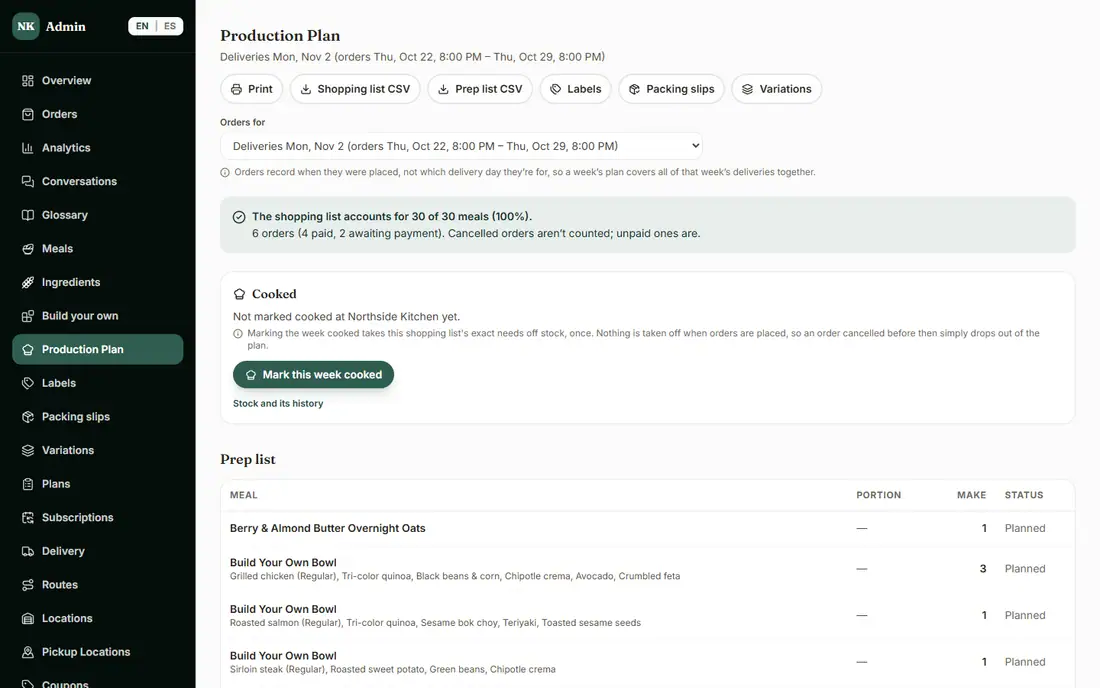
The admin Production Plan with the prep list for a delivery week
The Production Plan for one delivery week.

What you see in the admin

Shopping lists by supplier

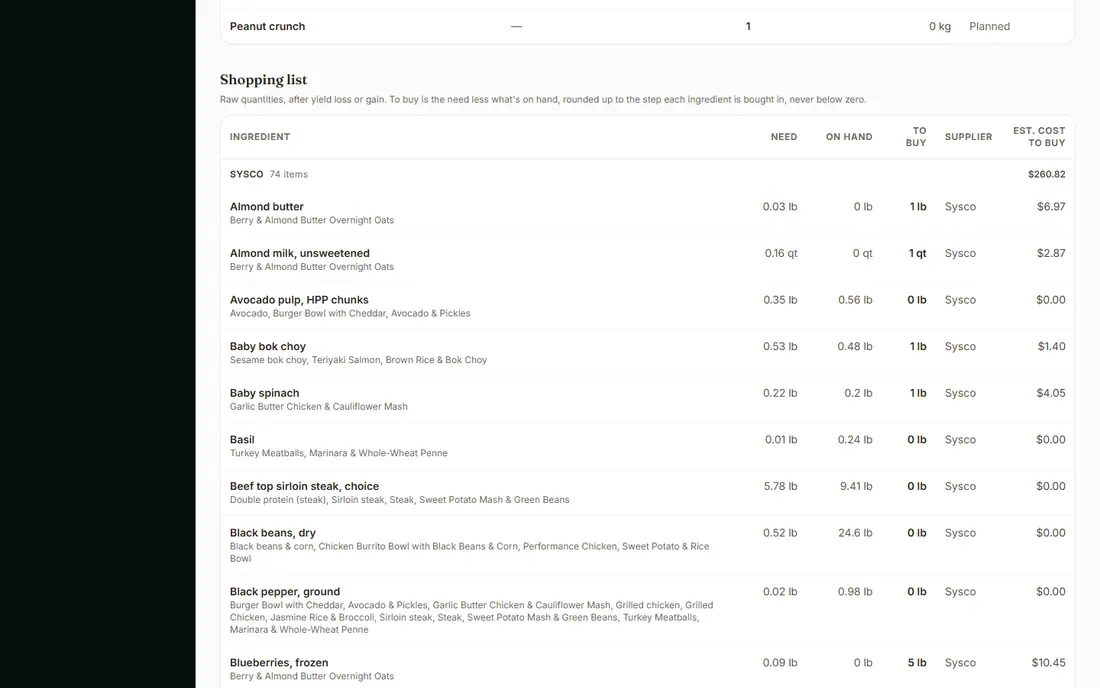
Further down: everything to buy, rounded to how you buy it, with one list per supplier and its estimated cost. With stock recorded, each row shows what the week needs, what is on hand and what to buy. Print it or download it as a spreadsheet.

The shopping list by supplier with needed, on hand and to buy columns
The shopping list, with what is on hand.

What you see in the admin

Ingredient costs and suppliers

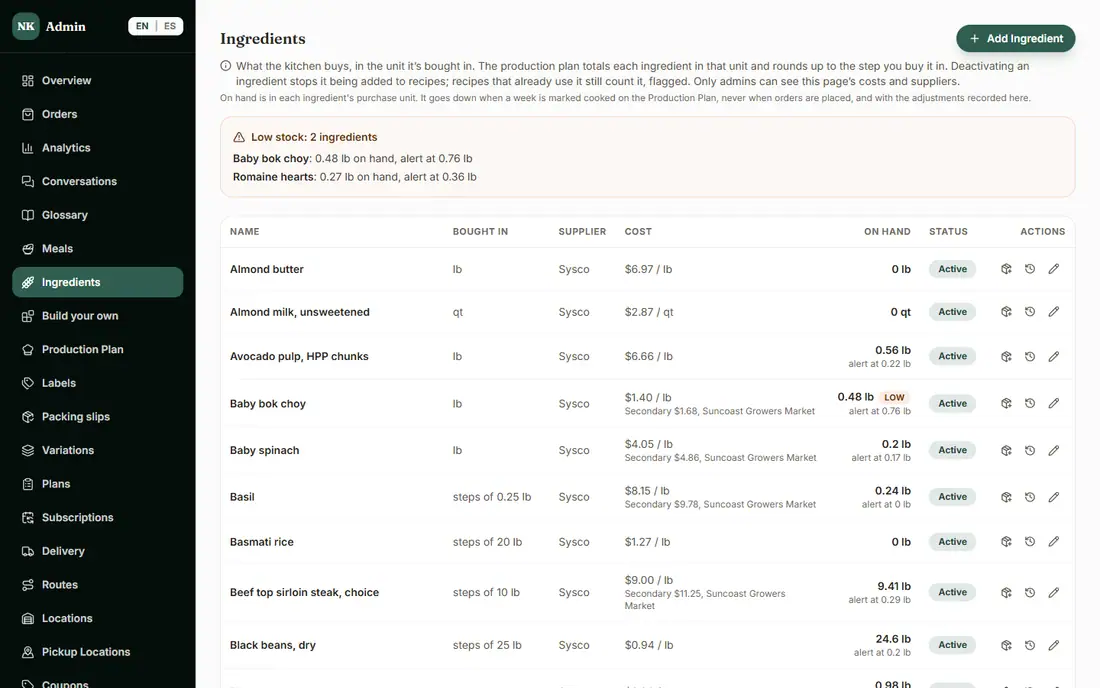
The Ingredients page holds everything you buy, how you buy it (by the pound, by the case), what it costs, which supplier it comes from and how much you have on hand. Recipes and costs are worked out from this list, and you can add a second supplier and price to compare.

The admin Ingredients list with cost, supplier and on-hand amounts
Ingredients, suppliers and stock.

What you see in the admin

Inventory that follows what you cook

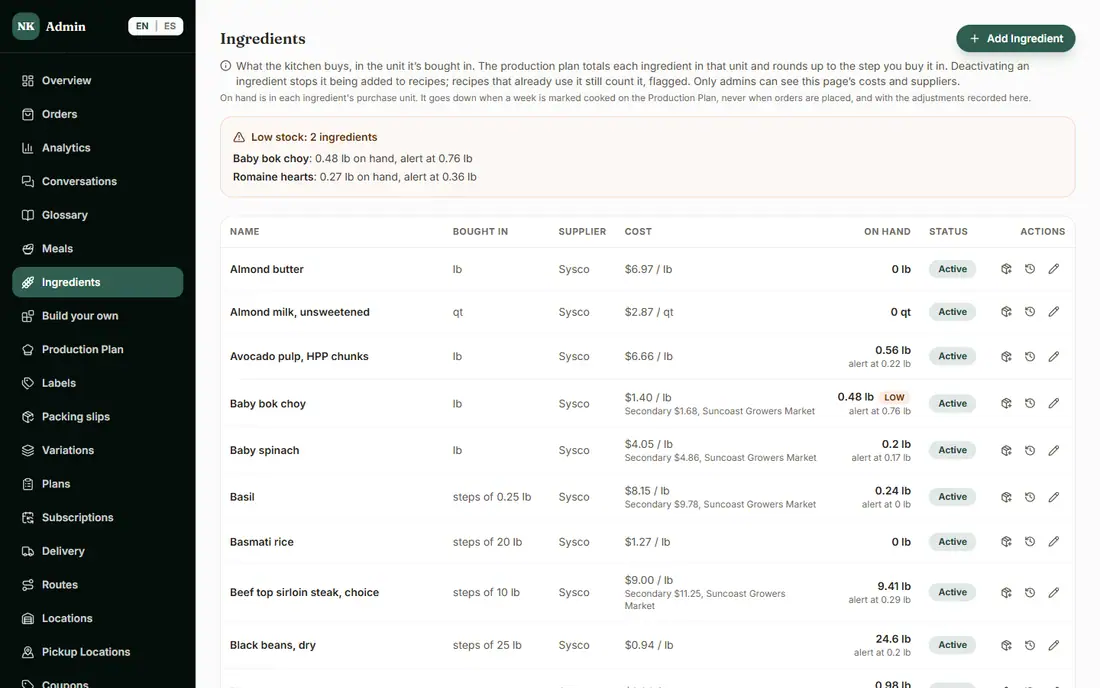
Anything at or below its alert level is listed at the top and marked Low. Stock goes down when you mark a week cooked, never when an order is placed, so an order cancelled before then simply drops out of the plan. Adjust stock with a reason (a delivery received, a count correction, waste or spoilage) and every adjustment is kept in the stock history.

The Ingredients page with low-stock alerts and on-hand amounts
Low-stock alerts at the top.

What you see in the admin

More than one kitchen

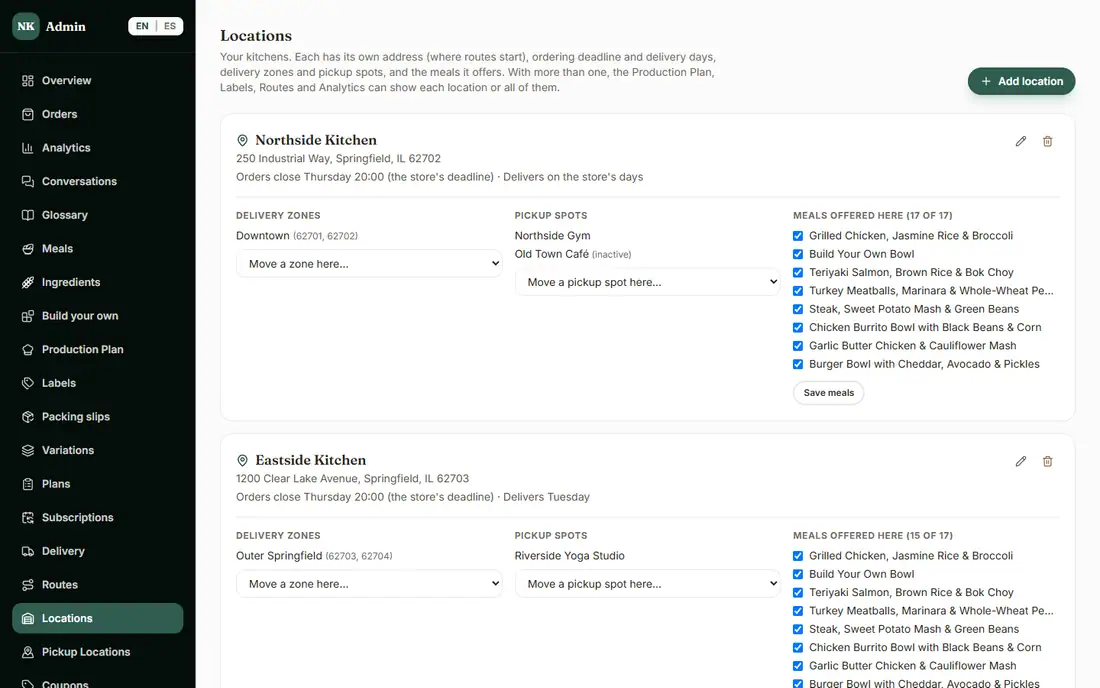
Each kitchen has its own address (where its routes start), ordering deadline and delivery days, delivery zones, pickup spots and the meals it offers. Customers are matched to a kitchen by their address or pickup spot, and each kitchen keeps its own stock. With one kitchen you see none of this. The screen is from the demo's Established sample business, which has two.

The admin Locations page with two kitchens and their zones
Two kitchens, each with its own schedule and menu.

What is included, and in which plan

Each plan includes everything in the plans before it.

  • Production plan

    The week's prep list and shopping list from the orders.

    In Basic and above
  • Costs and suppliers

    Ingredient costs, food cost per meal and your supplier list.

    In Advanced and above
  • Inventory

    Stock on hand, counted down as you cook each week.

    In Advanced and above
  • More than one kitchen

    Run several kitchens, each with its own schedule, zones and menu.

    In the Pro plan

How it helps you grow

  • Less waste

    You buy for the week's actual orders, with what is already on your shelves taken into account, instead of guessing.

  • Know what a meal costs you

    Ingredient costs and suppliers sit behind every recipe, so you can see the food cost of a meal before you set its price.

  • Less admin time

    The prep list, the shopping list and the labels all come from the same orders, so you stop retyping the week.

  • Room to grow

    When a second kitchen makes sense, it has its own schedule, zones and stock, and your reports can show one kitchen or all of them.

Try it in the demo

These links open the exact screens in the live demo, in a new tab. Nothing in the demo is real: no payments, no emails, no customers.

Admin links ask you to click Sign In once. The demo fills in the sample login for you.

Questions owners ask

Does the plan leave out skipped and paused weekly plans?

Yes. The prep list is built from that week's orders and the weekly plans that are actually delivering. Skipped and paused weeks are left out.

When does stock go down?

When you mark a week cooked. Then the exact amounts on that week's shopping list come off stock, once, and Undo cooked puts them back. Nothing comes off when an order is placed.

Can I send each supplier their own list?

The shopping list is split by supplier, with an estimated cost for each. You can print it or download it as a spreadsheet.

Do I need more than one kitchen to use this?

No. Production planning, costs and inventory work with one kitchen. More than one kitchen is a separate feature, in the Pro plan, for when you grow into it.

Related features

  • Delivery and pickup

    ZIP zones, delivery days and deadlines, pickup locations, route sheets and packing slips.

  • Labels and use-by dates

    Printable labels with nutrition facts, ingredients, allergens and use-by dates, from your own menu data.

  • Reports and insights

    Analytics, repeat rate and churn, CSV exports and a sales tax report.

All features →

Want to see it with your menu?

We set it up for you and move your existing customers over. Call us or talk to Alex, and we will show you how it would work for your business. You can also read the demo guide first.